BlueRail Trains – Using Ditch lights with the BlueRail App
Category : Videos
BlueRail’s app offers a simple intuitive interface for configuring and using Ditch Lights with your BlueRail plugin board.

iOS & Android Train Control
Category : Videos
Category : Videos
To access this screen: set sound scheme to “steam” in settings, go to Train Control screen, swipe open sound panel (upper right), bring panel all the way out, click “Chuff rate” button at bottom right of panel (beneath volume sliders).
Category : Articles
If you are NOT running the latest version available for your device, you may have bluetooth bugs that will affect bluetooth performance.
The minimum version of Android supported is 4.3.
 |
General method for updating iOS: Settings >> General >> Software Update |
 |
General method for updating Android: Settings >> General (scroll down) >> About Device >> Software Update |
Most devices provide a back-up method (which is recommended prior to performing updates).
Updates from Wireless Providers:
Verizon Wireless Software Updates
ATT Wireless Device Support
Sprint Device Support
T-Mobile Software Updates
Updates By Manufacturer:
Apple
BlackBerry
Google (Nexus)
HTC
Kyocera
LG
Motorola
Nokia (Microsoft)
Pantech
Samsung
Sony
|
General method for updating iOS: App Store >> Updates (Lower Right) |
|
General method for updating Android: Play Store >> (Click three bars in upper left of search box) >> Apps & Games >> My apps & games >> Updates Sometimes the Google Play store will cache the page from the last time you opened Google Play (and not display the latest available updates). To “clear the cache” on your Google Play store, do the following: Settings >> General >> Applications >> (scroll down) Google Play Store >> Clear cache |
Category : Uncategorized
Train Control
Control multiple trains
Basic light control
Extended light panel (for configuring and operating all lights)
Directional lighting
Extended sound panel (for configuring and operating all sounds)
Motor fine tuning settings
Advanced Tuning Panel
Firmware Updates
Multi-Train Screen
Final Chuff/Prime mover sound
Automatic Reconnect (following loss of power)
General connectivity cleanup required
Problems on Samsung Galaxy 5 clicking “standard” button
Correct crash when brand new E-Z Apps enter “settings” screen
Horn latency
App doesn’t alert you if bluetooth is turned off
Throttle moves and stretches when you first enter Train Control
Throttle sounds are pitch shifted (temp audio)
Throttle audio may not reflect speed (temp audio)
Stop-All issue when operating 3 trains
Occasional unresponsive loco when operating multiple trains
If you experience any connection problems (or loco is unresponsive), try one of these:
1-Restart app
2-Power cycle loco
3-Turn bluetooth on/off in your settings
Make sure your devices is updated to the latest version of Android. Please read THIS SUPPORT ARTICLE
This is a live document
CRASH REPORTS One of the most valuable tools in Android development is the built-in “Crash reports”. If you experience a “crash” while running the BlueRail Android Beta, your are generally given two options: “Close” and “Report”. Please choose “Report” and add a sentence or two in the space provided to tell us what led up to the crash. This report is sent immediately to us and gives us valuable insight on what caused the crash, and allow us to fix the problem in the next app update.
Category : Videos
Category : Articles
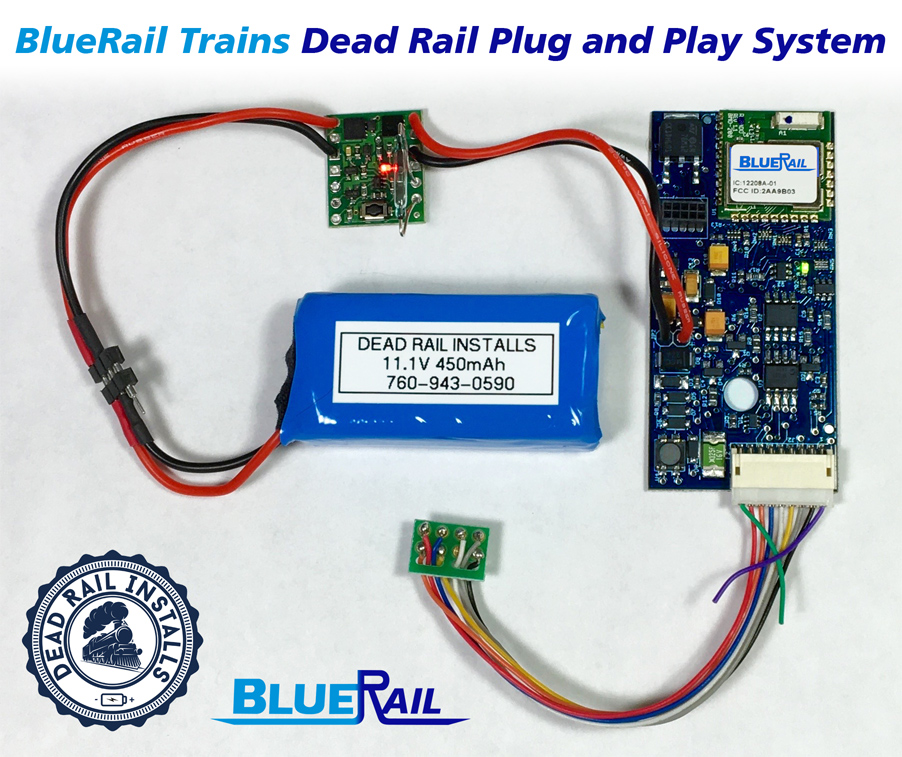
The Dead Rail kit is the first battery power system that is truly plug and play. The kit includes a board, lithium protected battery, magnetic reed switch, a 9/8 pin wire harness, and all connections (assembled). The harness included in the kit is a 9 pin NMRA JST plug to 8 pin NMRA plug. Please use the following guidelines when installing your kit.
Magnetic Reed Switch
Be very careful when trying to bend the leads on the magnetic reed switch. Never put pressure on the glass part. Only try bending when holding the leads. Needle nose pliers are good for holding the leads while bending.
On/off Switch
Mount the on/off switch on a spot near the top or side of the tender or loco shell. Use a reasonably strong magnet. The magnet will work through a plastic shell. A metal shell might require some testing to find a good spot.
Do your experimenting before removing the protective sheet over the adhesive. The on/off switch doesn’t need to be attached to the loco as long as it is not in the way of removing the battery.
Battery
Use a programmable charger. Wall plug in chargers have been known to fail. They charge at a constant rate which may be too high for smaller lithium batteries.
Recommended is the Hi Tec RC X1 AC Plus. There are other programmable chargers available. Make sure it has the capability to charge at .1 or .2 amps. Many chargers come in DC or AC versions. DC versions require a separate power supply. AC versions plug into the wall.
http://hitecrcd.com/products/chargers/acdc-chargers
Charge the 450ma 11.1V pack at .2 amps or 200ma.
The battery pack has protection on the cells. This protects against over charge, over discharge, and short circuit. The pack will stop working until the fault goes away. Then the boards will reset and the battery will charge or discharge again. If this happens, discover what the cause is.
If the system doesn’t work:
Is the battery plugged in correctly? It is possible to plug the battery in backwards. The plug is polarized. Nothing will happen.
Is the battery charged?
Is the on/off switch in the on position? The red light will be lit when on. The green light will blink on the BlueRail board.
Is the harness plugged in tight?
Article about Battery Charging
Category : Videos
Category : Videos
Category : Articles
This article explains connecting and disconnecting from a bluetooth train.
When a train or board is powered up and in range, it should appear in the home screen of the application with the option to “connect” or “disconnect” from any train. Once you have “connected” to a train it is no longer visible to other users (or other applications) until you choose to “disconnect” from a train.
If a board or train is powered up and in range, but you do not see it in the app home screen, there are two probable causes. Either bluetooth is turned off in your device or the board is being occupied by another user (or application).
IS BLUETOOTH TURNED ON?
The app attempts to alert you whenever bluetooth is turned off, but if you are not seeing a bluetooth board this is the first thing to check. Bluetooth is managed in the “settings” of your phone/device. Be aware that being in “Airplane Mode” will generally turn off bluetooth.
IS ANOTHER DEVICE OCCUPYING BLUETOOTH BOARD?
If a train or board is powered up and in range and still not visible, check to make sure there is not another smartphone or tablet in range running the BlueRail or E-Z App that may be occupying the board. You must choose “Disconnect” (or close the app entirely) from the occupying device to make it available to other users.
One definitive way to “release” connections is to temporarily kill power to the board/train. This will cause the board to reboot and become available for connections.
IS YOUR DEVICE’S SOFTWARE UP TO DATE?
It is very important when using Android (or iOS) to run bluetooth trains that you update your device to the latest software available for your model. Please refer to THIS ARTICLE about how to update your device to the latest version of Android.
IS ANOTHER APPLICATION ON SAME DEVICE OCCUPYING BLUETOOTH BOARD?
If you run both the BlueRail app and the Bachmann E-Z App on one device at the same time, it is possible for one app to occupy a train, making the app unavailable in the other application. Please make sure all other bluetooth train control apps are completely closed when running your train.
RUNNING BLUETOOTH IN A GROUP ENVIRONMENT
When operating bluetooth trains in a group environment, please turn off “Auto-Connect” from the home screen of your app. Auto-Connect is a handy feature for use at home, enabling your device to automatically connect to all trains (saving you from having to hit the “Connect” button). When operating in a group, turn this off and manually connect to trains using the “Connect” button. To make a train or board available to another user
Category : Articles
There are several general methods for connecting a BlueRail board to a locomotive.
9 PIN CONNECTOR
If you are plugging your BlueRail board into a “DCC-Ready” locomotive equipped with a 9-pin connector, simply plug the board into the connector (and you are done).
8 PIN CONNECTOR
If you are plugging your BlueRail board into a “DCC-Ready” locomotive equipped with a 8-pin connector, it is important to orient the connector correctly (as the pin can be inserted one of two ways). Please refer to the diagram below for reference.
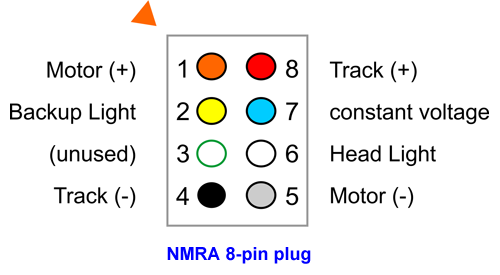
The circuit board in your locomotive should have a small triangle or dot indicating where the number 1 pin (orange) should go, which will help you orient the 8-pin connector correctly. (It is possible the number 1 pin location is not marked.) If you connect the pin in the wrong orientation, your locomotive will run backwards and the lights will not work. If after installation you find this to be the case, simply rotate the connector 180 degrees. It is probably a good idea to launch the app and test your motor and lights before putting the shell back on your loco.
Please also note that the 8-pin connector does not take advantage of the green and violet wires (ACC3 and ACC4). If you would like to take advantage of those ACC controllers, please refer to the wiring diagram on this page to see how this is done (note – this will involve tapping into the blue wire for a positive connection for each light.)
DIRECT WIRING CONSIDERATIONS
If you are directly wiring your BlueRail board into a train, please refer to the diagram on this page for how to connect the colored wires from a 9-pin harness.
There are two mistakes that are easy to make when wiring these connections: it is easy to accidentally get the polarity wrong on either your track connections (red+ / black-) or motor connections (orange+ / grey-). If this occurs, your locomotive will run in reverse. It is probably a good idea to launch the app and test your motor before putting the shell back on your loco. Although we will create a place in the settings for you to correct for this, it’s best to get the polarity right in your wiring.